
Recover a photo upload without duplicate tasks
Tell file selection, upload completion and generation submission apart when an upload is slow or interrupted.
The short answer
First identify the step that stopped: selecting a local file, uploading it, or submitting a generation. Keep the existing draft and task record. Repeated clicks can make recovery harder, especially after a submission with an unknown response.
In this guide
What to check
| Check which step failed | A thumbnail may be only a local preview. |
|---|---|
| Inspect the source file | Use a readable image within displayed limits. |
| Keep the draft while checking the connection | Avoid losing useful recovery information. |
| Check for an existing task | Unknown is not the same as failed. |
| Report enough to reproduce the issue | Keep private photos out of public error reports. |
Check which step failed
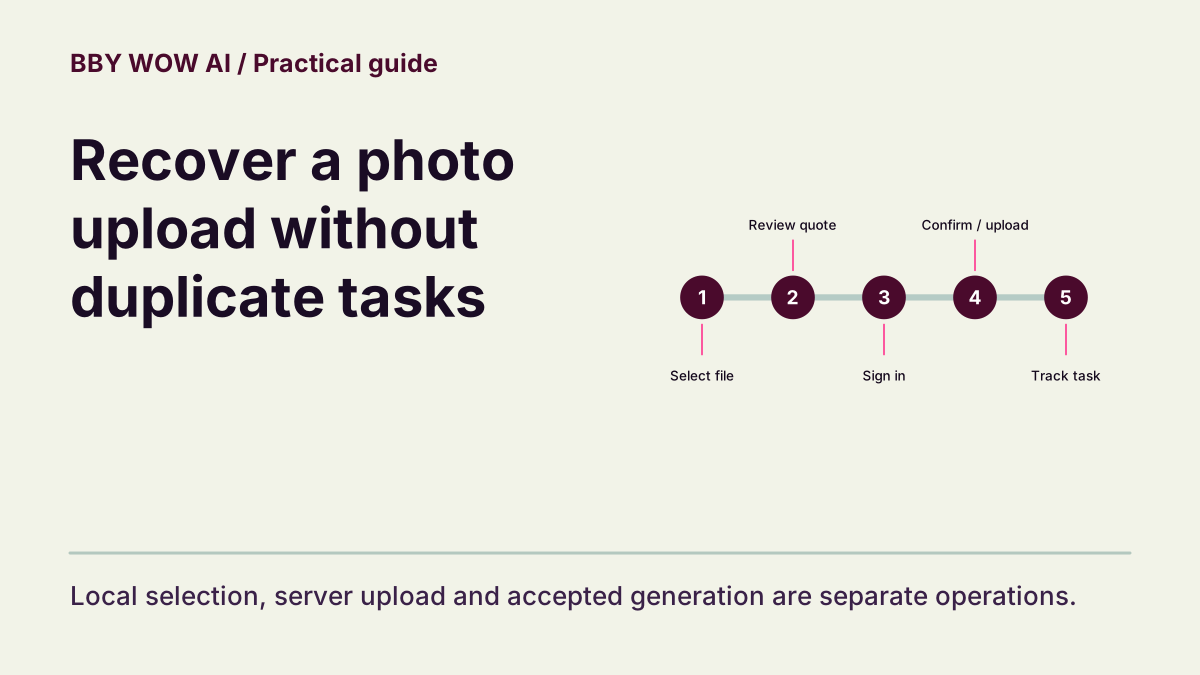
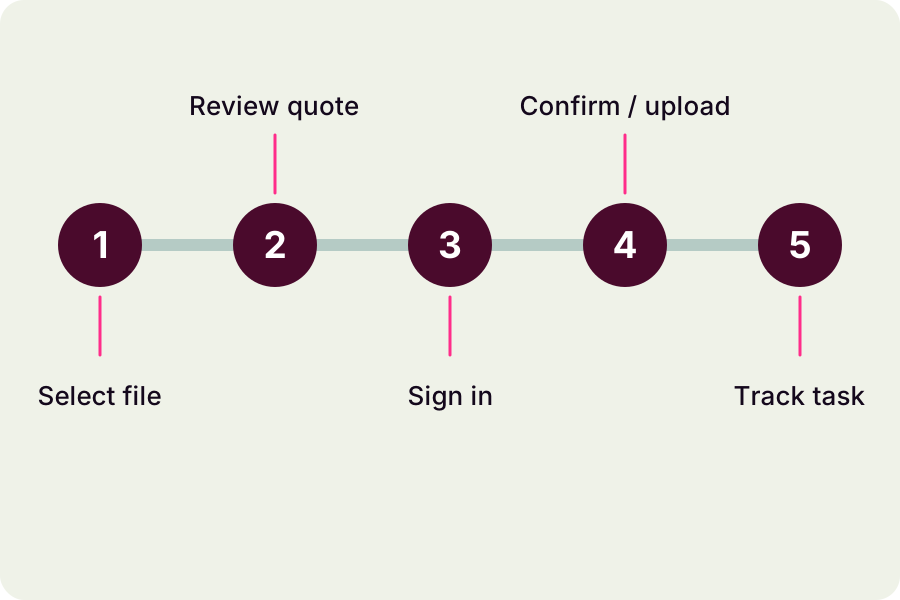
Selecting the file creates a local preview, not a server upload. Uploading begins only after you confirm generation and pass the account, balance and availability checks. Read the visible upload status or error; an accepted generation task is a later operation with its own identifier.
Inspect the source file
Open the original in your device’s photo viewer. Confirm it is a supported image rather than a renamed video or an unavailable cloud placeholder. Check the current upload hints for format and size limits. Export one clear copy if needed, and retain the original.
Keep the draft while checking the connection
Selecting a photo creates a local preview. Choose the scene and settings, then review the quote before confirming generation. The site checks sign-in, balance and availability before uploading; the “Uploading your private photos…” message identifies that step. Keep the connection available until it finishes or shows an error. You can replace the photo before confirming; the photo control is disabled while submission is busy. After a sign-in redirect, check that the same photo and settings were restored.
Check for an existing task
If you already submitted, inspect My Videos before trying again. A timeout can occur while a provider continues working. Keep the existing identifier so status and reserved credits can be reconciled. Do not assume a slow response means no request was accepted.
Report enough to reproduce the issue
Contact support with the page, approximate time, visible error, device/browser and task identifier if present. Explain whether the issue happened before or after submitting. Share sensitive source files only through an appropriate private support route, never as a public comment.
Contact support